






- Docs demo Site
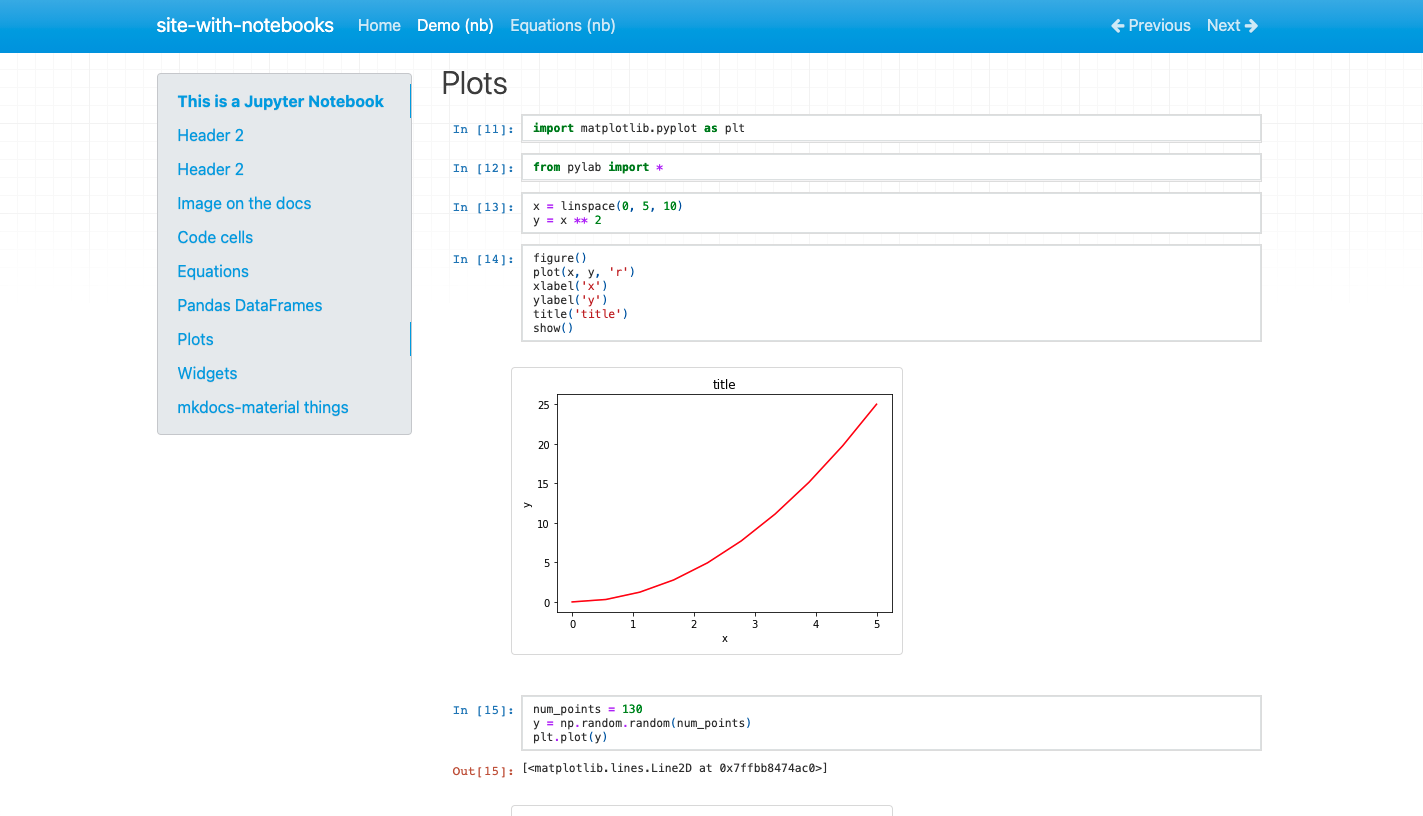
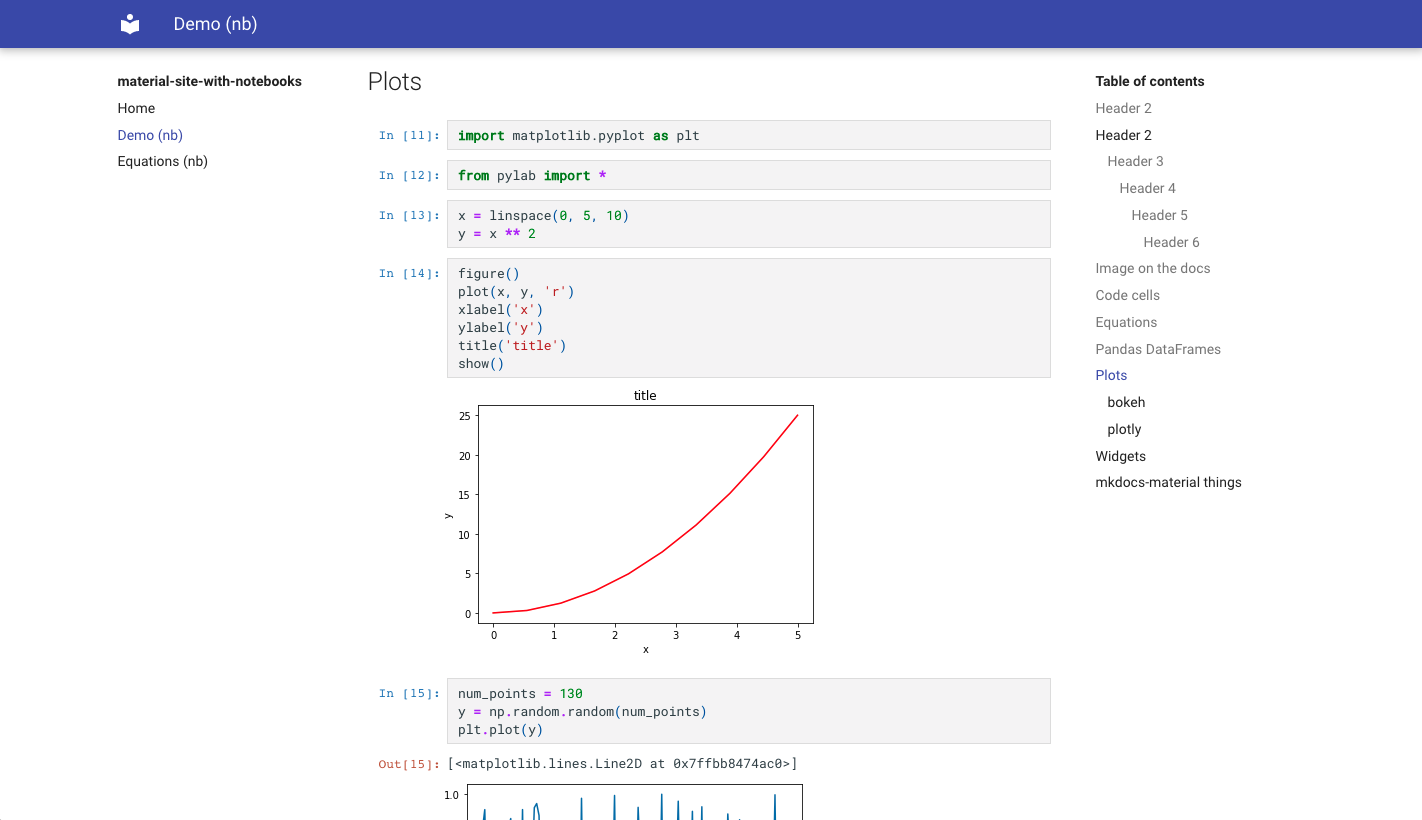
- Add Jupyter Notebooks directly to the mkdocs navigation
- Support for multiple formats:
.ipynband.pyfiles (using jupytext)
- Same style as regular Jupyter Notebooks
- Support Jupyter Themes
- Option to execute the notebook before converting
- Support for ipywidgets
- Support for mkdocs TOC
- Option to include notebook source
pip install mkdocs-jupyterIn the mkdocs.yml use Jupyter notebooks (.ipynb) or Python scripts (.py)
as pages:
nav:
    - Home: index.md
    - Notebook page: notebook.ipynb
    - Python file: python_script.py
plugins:
    - mkdocs-jupyter
Markdown cells use Jupyter's nbconvert renderer by default
(markdown_cell_processor: jupyter). To process them with MkDocs and its
configured Markdown extensions, opt in with:
plugins:
    - mkdocs-jupyter:
          markdown_cell_processor: mkdocs
    - mkdocstrings
With mkdocstrings installed and configured, notebook Markdown cells can then
reference documented API objects, for example
[Model.fit][my_package.Model.fit]. Code cells and rich outputs still use
nbconvert.
In this mode, Markdown syntax, heading IDs and the table of contents follow
MkDocs and your markdown_extensions. For notebook math, configure
pymdownx.arithmatex with generic: true; Mermaid fences likewise need your
site's configured Mermaid extension, such as Material's SuperFences setup.
References and Markdown extensions are processed on every build, including
when notebook conversion is cached.
The first h1 header (#) in your notebook will be used as the title.
# This H1 header will be the title.This can be turned off in the configuration (in which case the filename will be used as title):
plugins:
    - mkdocs-jupyter:
          ignore_h1_titles: True
In order to see the table of contents you need to maintain a hierarchical
headers structure in your notebooks. You must use h2 headers (##) and not h1
(#)
## This H2 title will show in the table of contentsIf you want to nest headers in the TOC you need to add additional levels later in the same markdown cell or new bottom markdown cells:
## This header will show as top level in the table of contents

<content>

### This one will be displayed inside the above levelAdd YAML frontmatter at the start of the notebook's first Markdown cell to set standard MkDocs page metadata:
---
title: Analysis
description: An overview of the analysis.
hide:
  - navigation
  - toc
search:
  exclude: true
---

# Analysis

Notebook content goes here.
The frontmatter is removed from the rendered notebook and exposed as page.meta
to MkDocs plugins and templates. In Material, the example hides the page's
navigation and table of contents and excludes it from search. Other metadata
keys are passed through unchanged.
Search exclusion uses Material's search plugin. With older MkDocs versions,
select it explicitly as material/search in your plugins configuration.
The first Markdown cell can contain only frontmatter, with content in later cells. Frontmatter must be a closed YAML mapping; YAML examples in code fences or later Markdown cells remain content. This also works in Jupytext notebooks.
For notebooks with frontmatter, an explicit nav title takes precedence over
the metadata title, followed by the first H1. Set ignore_h1_titles: true to
ignore that H1 fallback. Themes may use the metadata title separately, such as
for the browser tab title. Notebooks without frontmatter keep their existing
title behavior.
You can control which files are included or ignored via lists of glob patterns:
plugins:
    - mkdocs-jupyter:
          include: ["*.ipynb"] # Default: ["*.py", "*.ipynb"]
ignore: ["some-irrelevant-files/*.ipynb"]Use notebook_dirs to mount source directories outside docs_dir:
plugins:
    - mkdocs-jupyter:
          notebook_dirs:
              examples: notebooks

nav:
    - Home: index.md
- Example: examples/tutorial.ipynbYou can tell the plugin to execute the notebook before converting, default is
False:
plugins:
    - mkdocs-jupyter:
          execute: true
You can tell the plugin to ignore the execution of some files (with glob matching):
plugins:
    - mkdocs-jupyter:
          execute_ignore:
              - "my-secret-files/*.ipynb"
To fail when notebook execution fails set allow_errors to false:
plugins:
    - mkdocs-jupyter:
          execute: true
allow_errors: falseBy default the plugin will use the kernel specified in the notebook to execute it. You can specify a custom kernel name to use for all the notebooks:
plugins:
    - mkdocs-jupyter:
kernel_name: python3By default the plugin will show full code and regular cell output details. You can hide cell code input for all the notebooks:
plugins:
    - mkdocs-jupyter:
          show_input: False
You can also decide to hide the Out[#] output notation and other cell metadata
for all the notebooks:
plugins:
    - mkdocs-jupyter:
          no_input: True
You can also only hide the In[#] and Out[#] prompts but keep the input and
output content:
plugins:
    - mkdocs-jupyter:
no_prompt: TrueBy default the plugin will show full code and regular cell output details. You can hide cell code input for specific cells using tags:
plugins:
    - mkdocs-jupyter:
          remove_tag_config:
              remove_input_tags:
                  - hide_code
More detailed on removing cell based on tag, see NbConvert Customization)
You can configure the different Jupyter themes. For example if using material
with slate color scheme you can use the Jupyter Lab dark theme:
plugins:
    - mkdocs-jupyter:
          theme: dark

theme:
    name: material
    palette:
        scheme: slate
If a Material-derived theme uses a different name for its dark color scheme,
set dark_scheme to that name. The default is slate:
plugins:
    - mkdocs-jupyter:
          dark_scheme: dark
          # Optionally pass the css class for the dark selectors
dark_selector: ".dark"Use custom_template to extend the bundled notebook HTML template. Paths are
relative to mkdocs.yml; absolute paths also work.
plugins:
  - mkdocs-jupyter:
      custom_template: overrides/notebook.html.j2
      no_prompt: true
For example, overrides/notebook.html.j2 can make cell outputs collapsible:
{% extends "mkdocs_html/notebook.html.j2" %}

{% block output_group %}
<details>
  <summary>Show output</summary>
  {{ super() }}
</details>
{% endblock output_group %}
Includes and local assets are resolved from the custom template's directory
before the bundled templates. Notebook heading extraction remains unchanged.
Conversion caching is disabled with custom_template so edits to templates,
includes, and assets take effect on each build. With execute: true, this also
means notebooks execute on each build.
Pass additional nbconvert HTML exporter options through html_exporter_options:
plugins:
    - mkdocs-jupyter:
          html_exporter_options:
              embed_images: true
              anchor_link_text: "Link"
embed_images embeds local images referenced in Markdown cells as base64
URLs, including Markdown images and HTML <img> tags. Paths resolve
relative to the notebook, so the same references work in Jupyter and the
built documentation. Existing image alt text and HTML attributes are retained.
Remote images remain external, and missing local images keep their original
URLs. Images in arbitrary HTML outputs are outside this nbconvert option's
scope.
Option names and value types are validated against nbconvert's configurable
HTMLExporter traits. Use plain names such as embed_images, without an
HTMLExporter. prefix. Unknown options and invalid values produce a
configuration error.
Dedicated plugin settings take precedence: show_input controls input
visibility, and no_input / no_prompt keep their prompt-hiding behavior.
Use the plugin's custom_template, theme and MathJax settings to configure
those features; exporter options do not replace the package's templates,
filters or preprocessing pipeline.
Conversion caching remains enabled. Exporter options and the contents of
referenced local images are checked before reusing cached HTML. Changing,
removing or adding an image triggers reconversion; unchanged images reuse
the cache. With execute: true, reconversion also reruns the notebook.
This option will add a custom CSS class to the div container that highlights
the code cells. This can be useful to add custom styles to the code cells.
plugins:
  - mkdocs-jupyter:
highlight_extra_classes: "custom-css-classes"By default RequireJS is not loaded. This is required for Plotly. You can enable it with:
plugins:
    - mkdocs-jupyter:
include_requirejs: trueNotebook math uses MathJax 4.1.3 by default, including inline equations, display math, AMS numbering and labels. Material's instant navigation is supported. MathJax loads when a notebook is opened; an existing MathJax 3 or 4 runtime is reused, preserving the site's configuration.
To select another supported major version or host MathJax yourself:
plugins:
    - mkdocs-jupyter:
          mathjax_version: 3 # Supported: 2, 3, 4. Default: 4.
          # Optional: URL of the matching MathJax component and its assets.
          custom_mathjax_url: /assets/mathjax/tex-mml-chtml.js
Without custom_mathjax_url (or with an empty value), the plugin uses a CDN
URL for the selected version. Version 3 uses MathJax 3.2.2; version 2 keeps the
legacy nbconvert configuration. If you already specify a MathJax 2 URL, add
mathjax_version: 2 to keep using it. Custom version 3/4 configuration uses
window.MathJax and the promise API, rather than MathJax.Hub.
When your site loads MathJax itself, its TeX and processing settings apply to
notebooks too. Notebook equations use arithmatex regions with \( / \)
and \[ / \] delimiters, which Material's MathJax configuration recognizes.
A site that manages rendering should perform one initial typeset: set
startup.typeset: false when a navigation callback performs it. MathJax 3
callbacks must serialize asynchronous work through MathJax.startup.promise;
MathJax 4 serializes typesetPromise calls itself. The legacy version 2
renderer supports full page loads.
You can tell the plugin to include the notebook source to make it easy to show a
download button in the theme, default is False:
plugins:
    - mkdocs-jupyter:
          include_source: True
This setting will also create a page.nb_url value that you can use in your
theme to make a link in each page.
For example in mkdocs-material (see
customization),
you can create a main.html file like this:
{% extends "base.html" %}

{% block content %}
{% if page.nb_url %}
    <a href="{{ page.nb_url }}" title="Download Notebook" class="md-content__button md-icon">
        {% include ".icons/material/download.svg" %}
    </a>
{% endif %}

{{ super() }}
{% endblock content %}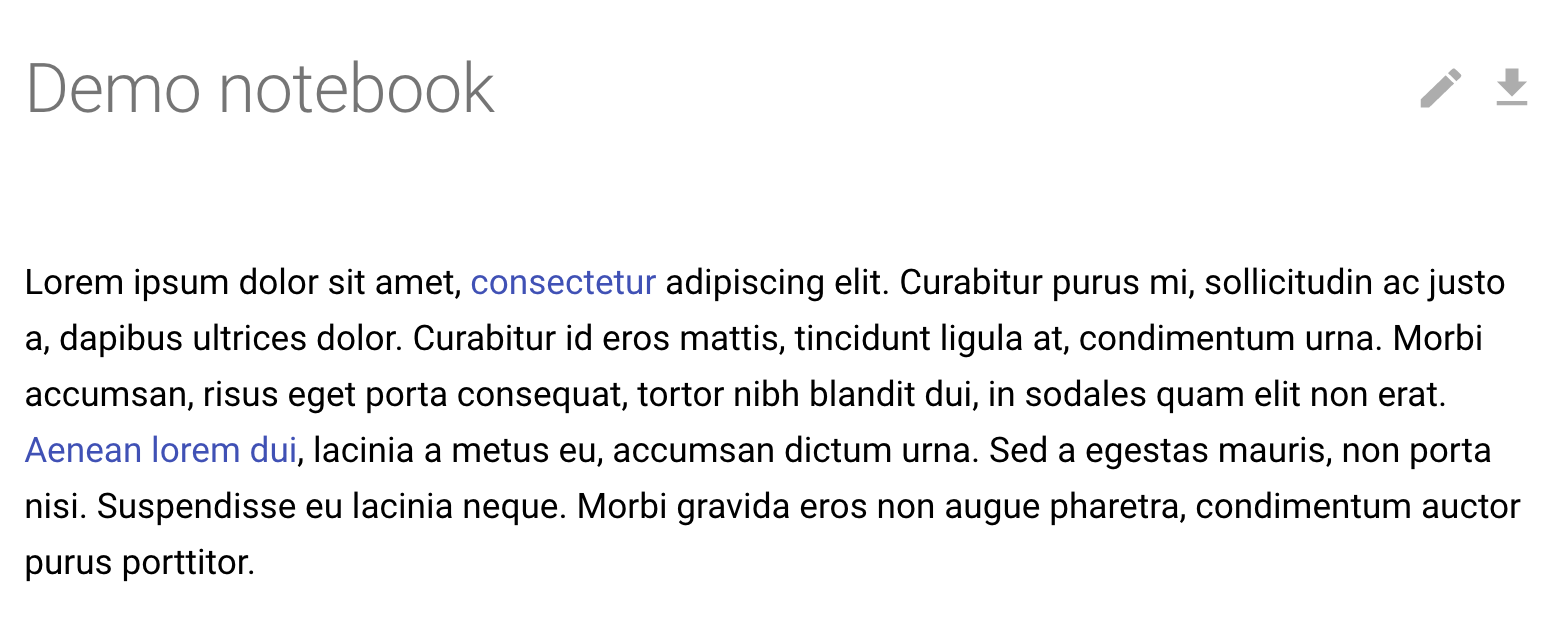
By default the plugin caches notebook conversion results so that unchanged notebooks are not re-converted on every build. The cache key is based on the notebook file content and all relevant plugin config options.
To disable caching:
plugins:
    - mkdocs-jupyter:
          cache: false
To change the cache directory (default is .cache/mkdocs-jupyter):
plugins:
    - mkdocs-jupyter:
          cache_dir: .cache/custom-dir
Stale cache entries from previous builds are automatically cleaned up.
This extensions includes the Jupyter Lab nbconvert CSS styles and does some modifications to make it as generic as possible in order for it to work with a variety of mkdocs themes. This is not always possible and the theme we test the most is mkdocs-material.
It's possible you might need to do some CSS changes to make it look as good as you want, for example for the material theme take a look at their customization docs.
Create a main.html file like:
{% extends "base.html" %}

{% block content %}
{{ super() }}

<style>
// Do whatever changes you need here

.jp-RenderedHTMLCommon p {
    color: red
}

</style>
{% endblock content %}Any markdown specific features such as admonitions won't work with mkdocs-jupyter because those features are not supported by Jupyter itself and we use nbconvert to make the conversion.
To use this type of features you have to define the HTML directly in the markdown cells:
<div class="admonition note">
    <p class="admonition-title">Note</p>
    <p>
        If two distributions are similar, then their entropies are similar,
        implies the KL divergence with respect to two distributions will be
        smaller...
    </p>
</div>